Centres should follow these easy steps to make sure they are ready to start delivering the ISE Digital exam.
Note: The below is a high-level overview of all procedures, centres are responsible for following all exam steps in the ISE Digital Registered Exam Centre (REC) Requirements and Admin pack.
 Room & environment
Confirm the exam room matches Trinity’s ISE Digital layout requirements
- Screens not visible to other candidates
- Minimum distances are met:
- 1.25m between edges of screens/monitors (no dividers)
- 1m with dividers / back-to-back seating
- 1.25m between edges of screens/monitors (no dividers)
- Clear walking space for invigilators
- Check lighting:
- No direct sunlight or glare on screens
- Blinds or curtains available if needed
- Confirm the following:
- A visible clock is in the room
- Notice to Candidates and Exam Rules poster are printed and ready to display
Note: You may wish to print the recommended exam module timings to display on each candidate's workstation as a reminder of time management throughout the exam.

 Equipment & IT
Confirm all devices meet requirements
- Desktop or laptop only (no tablets/Chromebooks)
- Minimum 13” screen, correct resolution and scaling set to 100%
- Secure Browser:
- Installed on all test taking devices
- Tested on each workstation
Note: To test Secure Browser, you can try and open one of the weblinks on the attendance list. You should be taken to the following screen: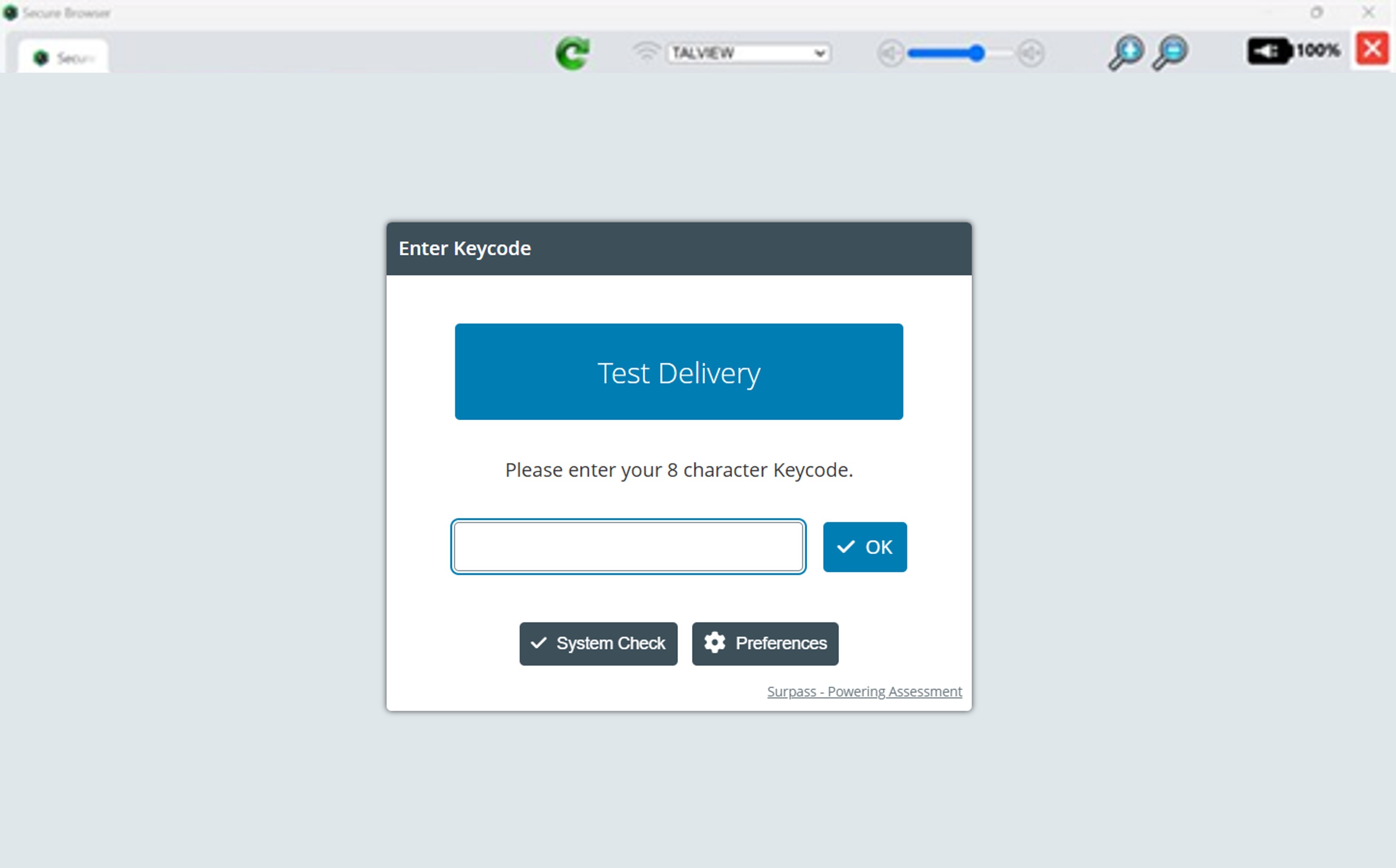 DO NOT enter the any of the keycodes.
- Headsets:
- Wired headsets only (Bluetooth is not permitted)
- Microphone tested
- Wired headsets only (Bluetooth is not permitted)
Note: Use the Equipment Check you can request via MyTrinity to check if the test taking device is in good working order.
- Network:
- Internet speed tested
- Preferably wired Ethernet for all devices
Ensure all laptops can remain plugged into a power source for the full exam duration


Admin & documentation
- Download and print the attendance report
- Before or on the exam day, download the attendance report from MyTrinity (underlined in red below).
The attendance report includes both the candidate's individual exam URL and the keycode that will be required by the candidate to start the exam. 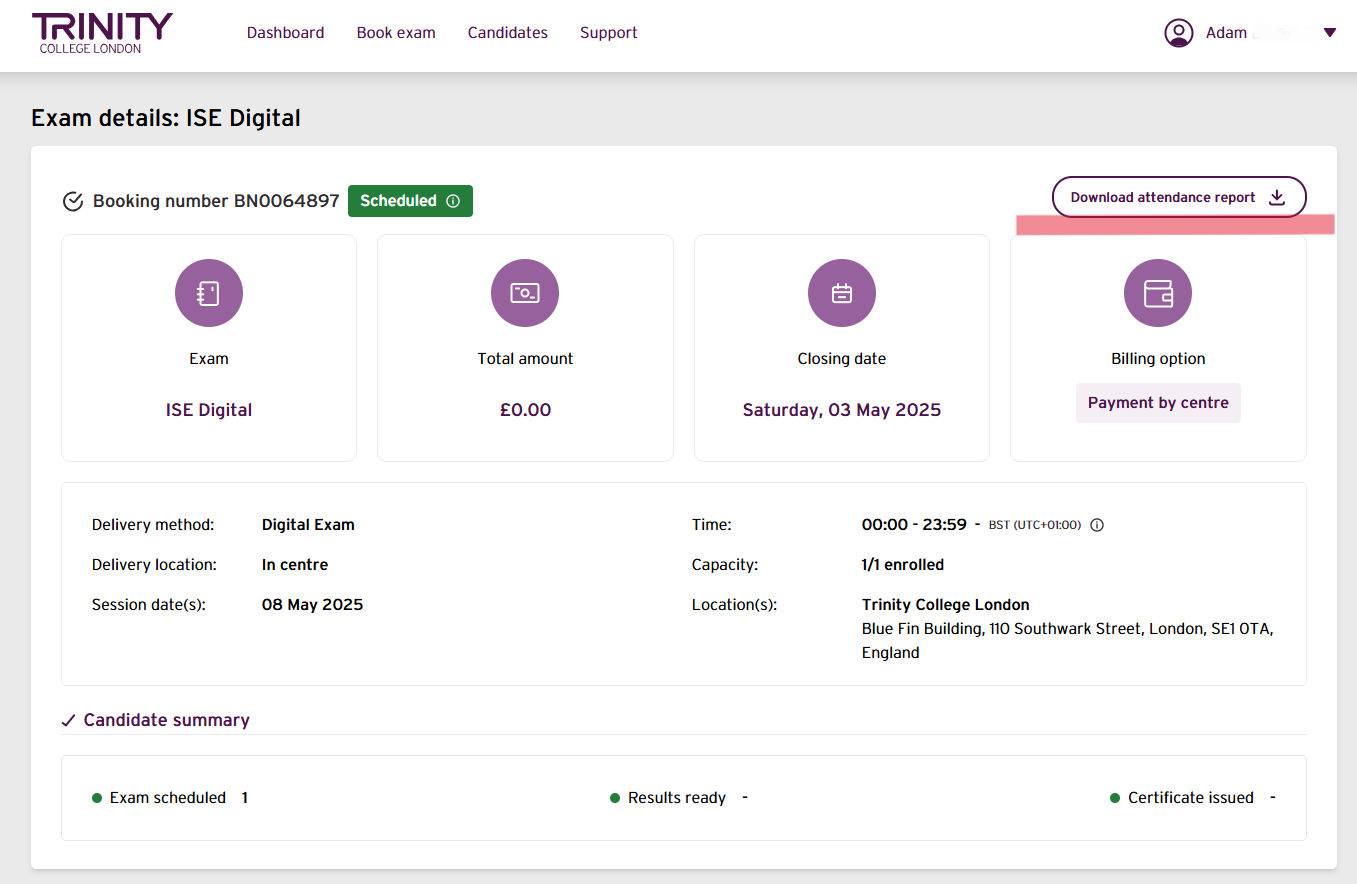
Note: If you download the report earlier, or more than one hour before the exam starts, make sure it is stored securely.
- Allocate candidates' seats
- Assign a desk (workstation) to each candidate
- Place the candidate information (name, weblink and keycode) on each workstation
Tip: Once downloaded, cut out the individual rows of the attendance report so you can place them on place each candidate's workstation.
- Launch Secure Browser on every candidate's workstation
- To load the exam login screen as shown below, enter the candidate’s exam weblink/URL into Edge, Chrome, Firefox or Safari
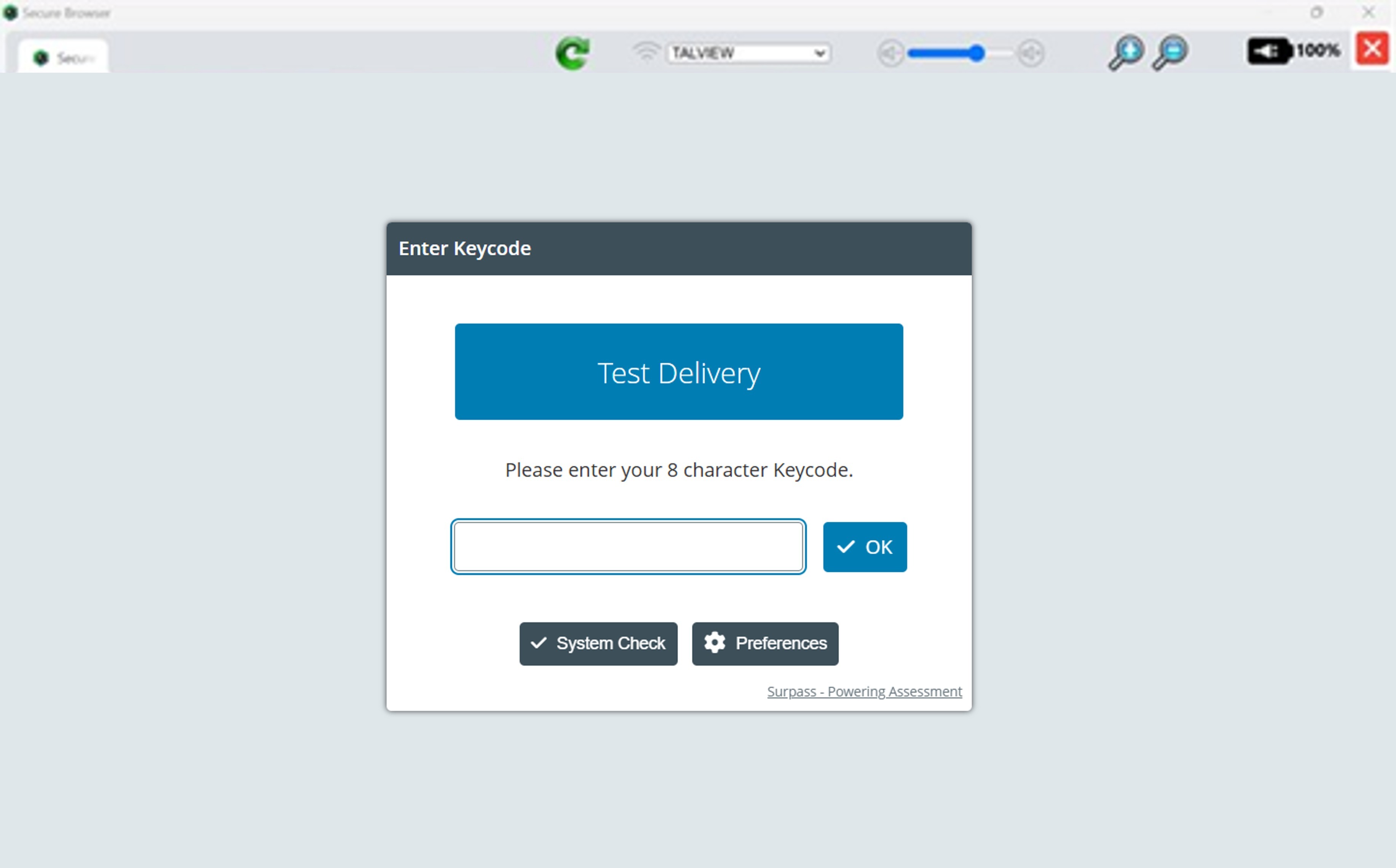
- To load the exam login screen as shown below, enter the candidate’s exam weblink/URL into Edge, Chrome, Firefox or Safari
Note: When the Secure Browser starts, it will automatically disable all other browsers and applications. However, to minimise any potential interference from background processes, we strongly recommend closing all applications and programs before launching the Secure Browser.
Tip: Copy the exam URL or click the link on a digital copy of the attendance list to launch the login screen.
Note: The link might only be clickable in some PDF viewers.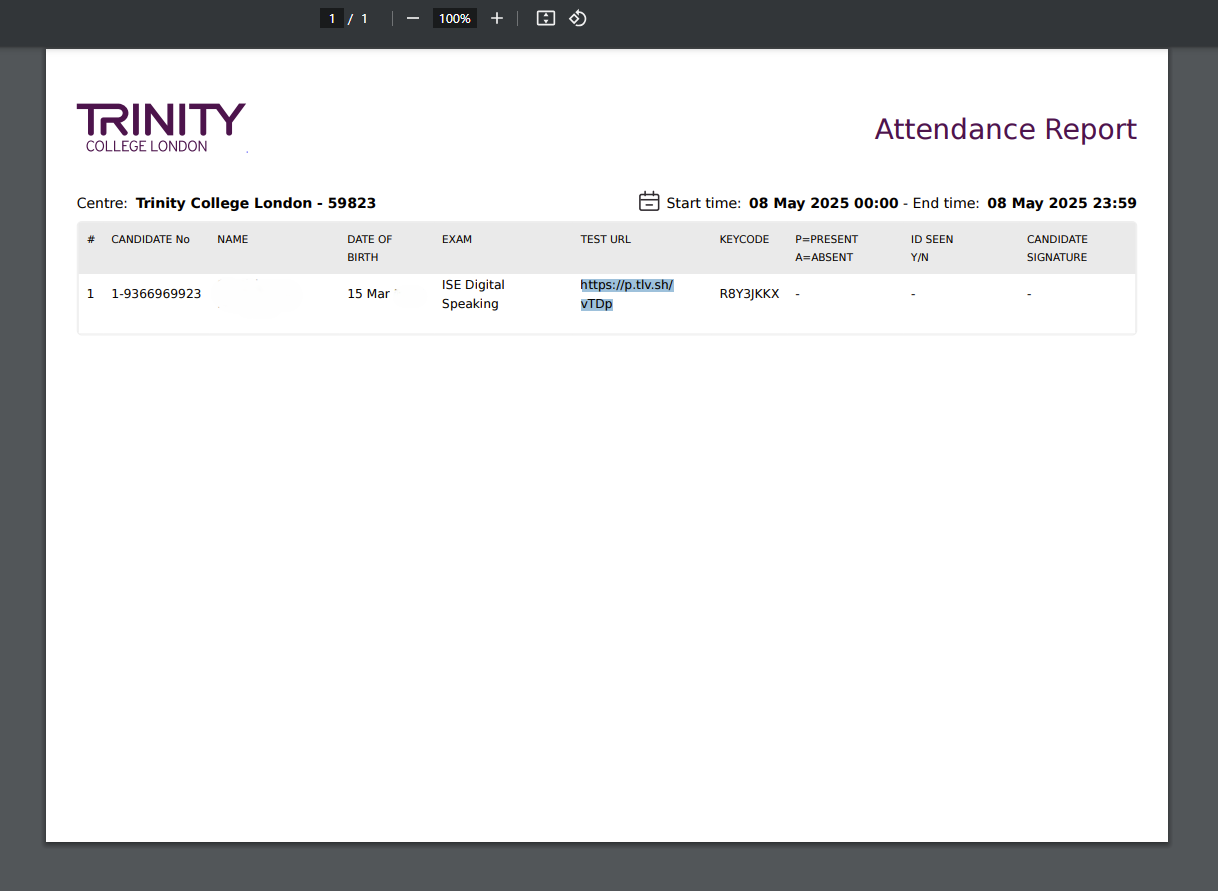
- Place the following in each workstation:
- Name
- Weblink/URL
- Keycode
- Pen & paper
- Optional: Printout with exam timings
- Run a system check on the exam platform as described here on every workstation


Candidate arrival and seating
- Candidates should arrive approximately 1 hour before the exam
- Confirm candidates keep their ID with them
- Allow candidates to bring topic notes into the room
- Ensure all personal belongings and smart devices are stored securely
- Direct each candidate to their assigned seat
Candidates should wait for further instructions now and NOT enter the keycode into the exam platform yet.
Note: Candidates who are bringing their own device to the exam should be given the time to set up their equipment and connect to the internet before the exam starts.
If you havent conducted the Sytem check on the exam platform yet after launching the exam URL/weblink, ask candidates do a system check to confirm audio, video playback and internet speed as described here.


Before the exam
Complete the steps below before asking candidates to start with the exam
- Check each candidate’s ID against the attendance list and desk keycode
- Read out the official invigilation script
- Prompt candidates to:
- put on their headsets
- enter their keycodes
- confirm their details
- agree to the Terms & Conditions
- start the exam


During the exam
Invigilators should
- monitor
- speaking waveform (flat line = possible recording issue)
- video playback issues
- reading/writing display problems and zoom adjustments
- provide verbal time reminders (or write time reminders on blackboard/whiteboard)
- take 360 degree exam room photos (showing candidate's backs only of possible)
- log any issues clearly for the Supervisor's report

 After the exam
- Complete the Supervisor’s Report here:
- Include required 360° photos of the room
- Record any technical or operational incidents
- Destroy all candidate topic notes
- Inform candidates that results are typically released within 3–5 working days.
See also:
System Check Before the Start of the Exam
Confirming Microphone & Audio Settings on a Mac
Confirming Microphone & Audio Settings on a PC
Accessibility Features of ISE Digital Exams
Was this article helpful?
That’s Great!
Thank you for your feedback
Sorry! We couldn't be helpful
Thank you for your feedback
Feedback sent
We appreciate your effort and will try to fix the article